



My Favorites Lists - Tutorial
My Favorites Lists - Tutorial
Amron’s “My Favorites” section provides you with the ability to create and access custom Favorites Lists for the products you order most frequently. By having Favorite Lists, you can decrease the amount of time you spend placing an order on our website.
Favorites Lists are similar to a Wishlist but much better! You can create as many Favorites lists as you want and place your online orders from a list while keeping it for future use.
Also, if you have your list in Excel or Google Sheets, you don’t need to search for each item one by one on our website, you can easily upload the list to your account and have it ready for future use. This will definitely save you some time!
To start using Favorites Lists, you only need to have an Account on our website. If you don’t have an Account with us yet, create one today! Visit Create an Account.
How to create a new Favorites List from a CSV File?
1. If you don’t have one already, please create an Account on Amron’s website.
2. Once you have logged in, go to the My Account page and click on “My Favorites” from the options on the left. In this section, you can create a new list or access previous uploaded ones.

3. You can create a new Favorites List by importing a CSV file. Follow these simple steps to create a CSV file to upload.
- If you have your list on a spreadsheet format (e.g. Excel, Google spreadsheets, etc.) you can convert the list to a CSV file easily and upload it to Amron’s website. To convert an Excel file to a CSV file, format all cells on the spreadsheet as Text and then save the file as a CSV (Comma delimited). The file will have the extension .csv
- The only information needed to create a list are the SKUs (Part Numbers) and Quantities. The list doesn’t need to have a header. This is an example how your spreadsheet should look like in Excel.

4. To upload the CSV file as a new Favorites List to your Amron’s account. Go to My Account – My Favorites and click on the blue button “Import CSV”. You will be prompted to select the CSV file to upload.

5. After the file is uploaded, you will get a confirmation message indicating the name of your new Favorites List and how many items (rows) were added. You will also see and have access to your recently created list.

Note: If your CSV file contains items that are not featured on Amron’s website, the line(s) on the CSV file will be skipped. The final confirmation message will let you know if items were not added to the list (Rows skipped).
6. You can click on the list to see all the items and quantities that are part of your list.

Note: Product availability is real-time basis and adjusted continuously. The product will be reserved for you when you place an order.
7. To change the default name of your Favorites List, go to the list and at the top left under Folder details you have the option to do so. Please click on “Save Name” to save changes.

8. By following these steps, you can create different lists and have them available for future purchases.
How to create a new list or add items to an existing list while browsing on Amron’s website?
1. You can create a new Favorites List or add items to an existing list while browsing Amron’s website.
2. The list to which you want to add the items must be selected as Default, go to My Account - My Favorites section and choose your Default List.

3. In case you want to create a new blank list, click on “Create New Folder”, enter the name for your new list and click on “Save Name”. You can then make this list your Default if you wish to.


4. To add items to your Default list, go to the Product Page and click on the “Add to Favorites” option below the “Add to Cart” button. The item will be automatically added to your Default list. Please note that you can modify the Qty. and add as many as you want. Keep browsing Amron’s website and adding items to your list as you need to.

How to place an Order from an existing Favorites List?
1. Go to a Favorites List and select the items you want to purchase from your list by checking the little rectangle box on the right.

2. Select all the items that you wish to add to your Shopping Cart and then click on the “Add to Cart” button located at the top and at the bottom of your list.

3. The items you selected will be added to your Shopping Cart on the same quantities as they were on your list. If you want to change the Quantities you can do it directly on the Shopping Cart, you just need to change the Quantity and hit enter.

4. You can now continue as usual and place an order on Amron’s website by clicking “Proceed to Checkout”
How to save your Shopping Cart as a Favorites List for later use?
1. You can save your Shopping Cart as a Favorites List for later use. From your Shopping Cart click on the “Save Cart for Later” option located below the “Proceed to Checkout” button.

2. After you click on “Save Cart For Later” your new Favorites List will be created. The default name for your List will be “saved cart + the date” but the name can be changed at any time.
Note: When you save your cart as a Favorites List, the products are not removed from the Shopping Cart so you can complete your current order if you wish to.

How to Edit or Update a Favorites List?
1. From a Favorites List, you can remove an item, change the quantities or move items from one list to another.
2. To remove an item from your list, just click on the “Remove option” available below each item.

3. To change the Quantities, change the quantity value and click on the “Update” button located at the top and at the bottom of your list.

4. To move an item from one list to another, go to the “Move To:” dropdown menu and select to which list you want to move the item to. Then, click on the “Update” button located at the top and at the bottom of your list.

Need Help?
If you need help creating a Favorites List or can’t find the products you are looking for, please contact your sales representative at (760) 208-6500 or send us an email to sales@amronintl.com.
Amron’s “My Favorites” section provides you with the ability to create and access custom Favorites Lists for the products you order most frequently. By having Favorite Lists, you can decrease the amount of time you spend placing an order on our website.
Favorites Lists are similar to a Wishlist but much better! You can create as many Favorites lists as you want and place your online orders from a list while keeping it for future use.
Also, if you have your list in Excel or Google Sheets, you don’t need to search for each item one by one on our website, you can easily upload the list to your account and have it ready for future use. This will definitely save you some time!
To start using Favorites Lists, you only need to have an Account on our website. If you don’t have an Account with us yet, create one today! Visit Create an Account.
- How to create a new Favorites List from a CSV File?
- How to create a new list or add items to an existing list while browsing on Amron’s website?
- How to place an Order from an existing Favorites List?
- How to save your Shopping Cart as a Favorites List for later use?
- How to Edit or Update a Favorites List?
- Need Help?
How to create a new Favorites List from a CSV File?
1. If you don’t have one already, please create an Account on Amron’s website.
2. Once you have logged in, go to the My Account page and click on “My Favorites” from the options on the left. In this section, you can create a new list or access previous uploaded ones.

3. You can create a new Favorites List by importing a CSV file. Follow these simple steps to create a CSV file to upload.
- If you have your list on a spreadsheet format (e.g. Excel, Google spreadsheets, etc.) you can convert the list to a CSV file easily and upload it to Amron’s website. To convert an Excel file to a CSV file, format all cells on the spreadsheet as Text and then save the file as a CSV (Comma delimited). The file will have the extension .csv
- The only information needed to create a list are the SKUs (Part Numbers) and Quantities. The list doesn’t need to have a header. This is an example how your spreadsheet should look like in Excel.

4. To upload the CSV file as a new Favorites List to your Amron’s account. Go to My Account – My Favorites and click on the blue button “Import CSV”. You will be prompted to select the CSV file to upload.

5. After the file is uploaded, you will get a confirmation message indicating the name of your new Favorites List and how many items (rows) were added. You will also see and have access to your recently created list.

Note: If your CSV file contains items that are not featured on Amron’s website, the line(s) on the CSV file will be skipped. The final confirmation message will let you know if items were not added to the list (Rows skipped).
6. You can click on the list to see all the items and quantities that are part of your list.

Note: Product availability is real-time basis and adjusted continuously. The product will be reserved for you when you place an order.
7. To change the default name of your Favorites List, go to the list and at the top left under Folder details you have the option to do so. Please click on “Save Name” to save changes.

8. By following these steps, you can create different lists and have them available for future purchases.
How to create a new list or add items to an existing list while browsing on Amron’s website?
1. You can create a new Favorites List or add items to an existing list while browsing Amron’s website.
2. The list to which you want to add the items must be selected as Default, go to My Account - My Favorites section and choose your Default List.


4. To add items to your Default list, go to the Product Page and click on the “Add to Favorites” option below the “Add to Cart” button. The item will be automatically added to your Default list. Please note that you can modify the Qty. and add as many as you want. Keep browsing Amron’s website and adding items to your list as you need to.

How to place an Order from an existing Favorites List?
1. Go to a Favorites List and select the items you want to purchase from your list by checking the little rectangle box on the right.

2. Select all the items that you wish to add to your Shopping Cart and then click on the “Add to Cart” button located at the top and at the bottom of your list.

3. The items you selected will be added to your Shopping Cart on the same quantities as they were on your list. If you want to change the Quantities you can do it directly on the Shopping Cart, you just need to change the Quantity and hit enter.

4. You can now continue as usual and place an order on Amron’s website by clicking “Proceed to Checkout”
How to save your Shopping Cart as a Favorites List for later use?
1. You can save your Shopping Cart as a Favorites List for later use. From your Shopping Cart click on the “Save Cart for Later” option located below the “Proceed to Checkout” button.
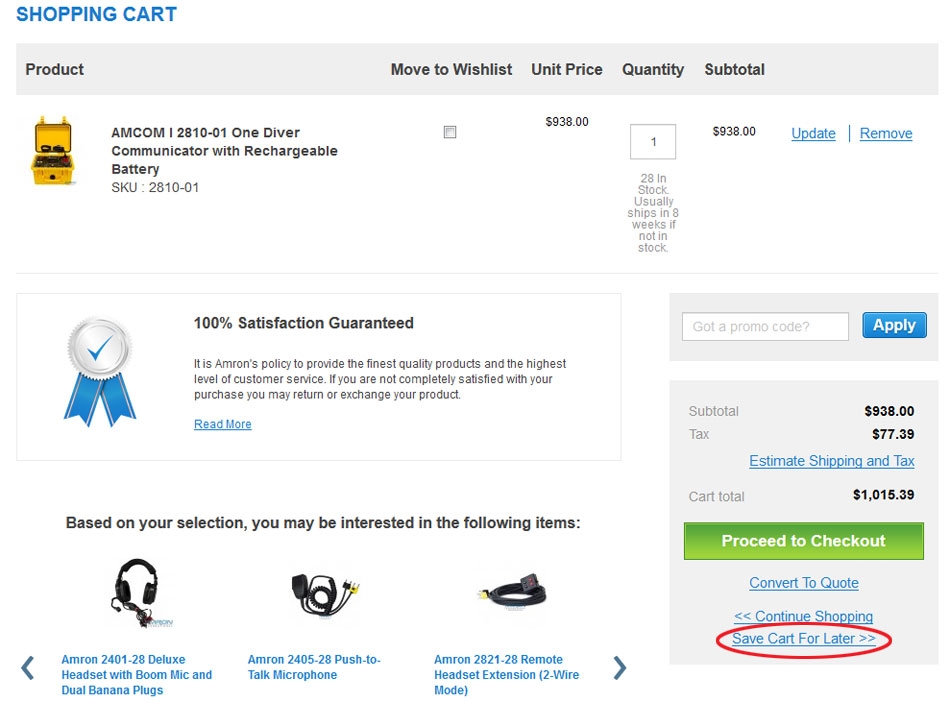
2. After you click on “Save Cart For Later” your new Favorites List will be created. The default name for your List will be “saved cart + the date” but the name can be changed at any time.
Note: When you save your cart as a Favorites List, the products are not removed from the Shopping Cart so you can complete your current order if you wish to.

How to Edit or Update a Favorites List?
1. From a Favorites List, you can remove an item, change the quantities or move items from one list to another.
2. To remove an item from your list, just click on the “Remove option” available below each item.

3. To change the Quantities, change the quantity value and click on the “Update” button located at the top and at the bottom of your list.

4. To move an item from one list to another, go to the “Move To:” dropdown menu and select to which list you want to move the item to. Then, click on the “Update” button located at the top and at the bottom of your list.

Need Help?
If you need help creating a Favorites List or can’t find the products you are looking for, please contact your sales representative at (760) 208-6500 or send us an email to sales@amronintl.com.